
Built for Microsoft 365 tenants of 50–5,000 users

20–40% of your Microsoft 365 storage is duplicates and stale files. Find it in one read-only scan.

TSO scans SharePoint, OneDrive, Exchange and Teams — one read-only consent, a ranked reclaim list, and PDF and Excel reports you can hand straight to a CIO.

Download a sample report

Microsoft 365 SSO · Read-only Graph permissions · No agents to install

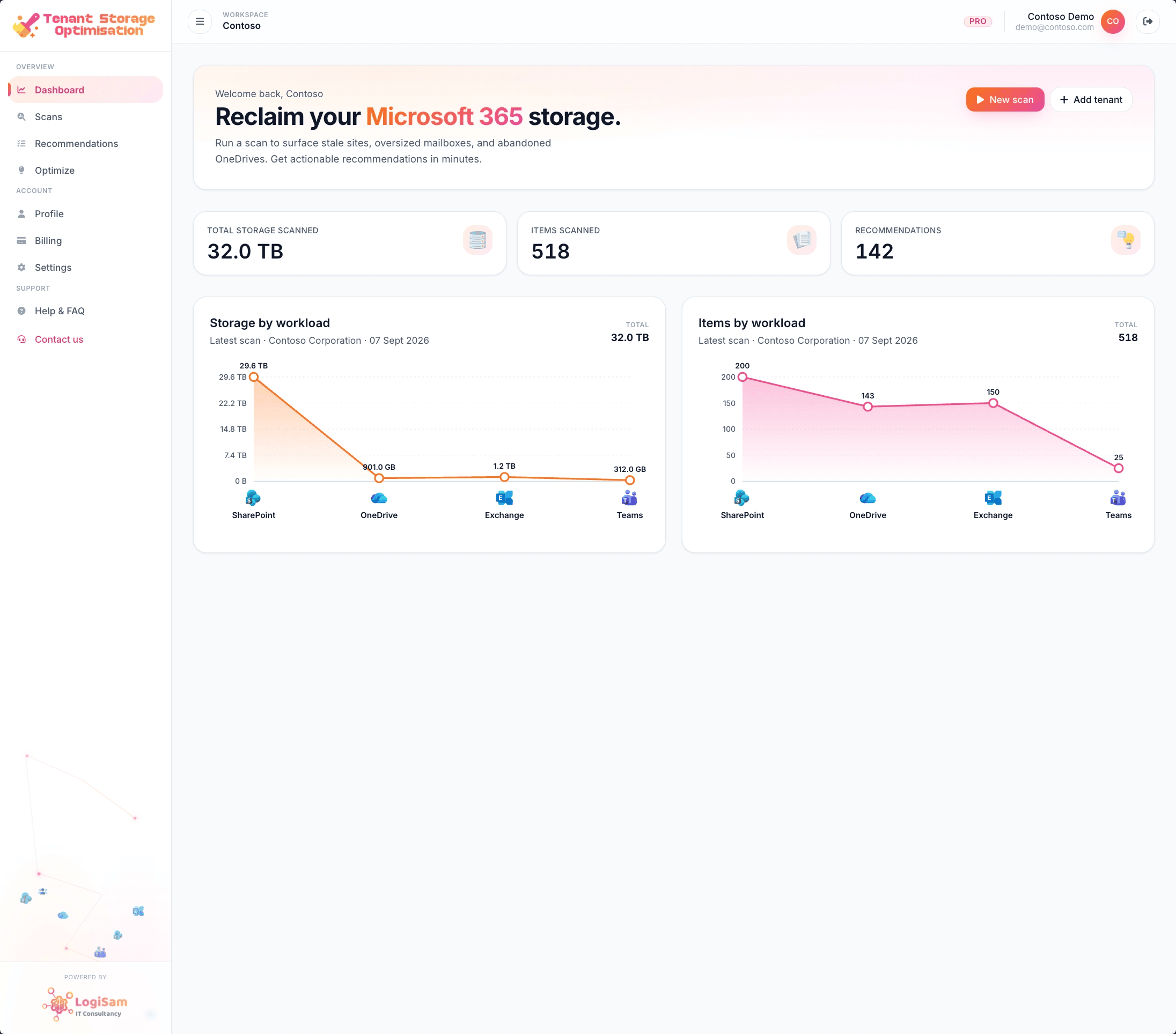
TSO home dashboard — total storage KPI, storage-by-workload and items-by-workload sparklines for a live Microsoft 365 tenant.
Built for Microsoft 365SharePoint OnlineOneDrive for BusinessMicrosoft TeamsExchange OnlineAzure Marketplace
Read-only. Safe by design

We only read. Never write. Never touch your files.

TSO requests only the Microsoft Graph read scopes below. The Graph API physically will not let us delete, move or modify anything in your tenant — even if we wanted to.

What TSO does read

Exactly these Microsoft Graph scopes — no more, no less.

  • Sites.Read.All

    Read SharePoint site + drive metadata.

  • Files.Read.All

    Read file metadata — name, size, hash, timestamps. Never contents.

  • Reports.Read.All

    Read the usage reports Microsoft already generates for the tenant.

  • Directory.Read.All

    Resolve user and group names for the ownership column.

  • User.Read.All

    Resolve mailbox owners.

What TSO cannot do

Even with your consent. The Graph API blocks it.

  • Delete files, sites, mailboxes or messages
  • Move or rename anything in your tenant
  • Modify permissions, sharing links or labels
  • Read file contents, email bodies or Teams messages
  • Send email or post to Teams on your behalf
  • Create or change apps, users, groups or policies

Revoke access anytime from the Microsoft Entra admin portal → Enterprise applications → TSO → Remove.

No file contents
Never touched. Never stored.
Microsoft Azure UK South
Hosted in UK South by default. MSPs can self-host in their own Azure region.
Full audit trail
Every Graph call is logged and exportable.
Alongside the Microsoft 365 admin center

What TSO adds on top of native M365 dashboards

TSO is designed to complement the surfaces IT admins already know. Same tenant, same permissions model — one focused view for cleanup and reclaim.

Capability
Microsoft
Microsoft 365 admin center & usage reports
LogiSam
TSO
Per-workload storage totals
Included in the Microsoft 365 admin center
Available in TSO
Cross-workload inventory in one view
Available across separate reports
Available in TSO
Duplicate-file detection (hash-based)
Not surfaced natively
Available in TSO
File-version bloat with reclaim estimate
Not surfaced natively
Available in TSO
Owner-status join (departed users, ownerless sites)
Not surfaced natively
Available in TSO
Ranked reclaim recommendations with reason codes
Not surfaced natively
Available in TSO
Client-ready executive PDF + Excel workbook
Raw CSV export available
Available in TSO
Why TSO

The problem it solves — in one page

Storage bloat is quiet, cumulative and expensive. TSO exists to make it visible, ranked, and safe to act on.

The problem: silent, compounding storage bloat

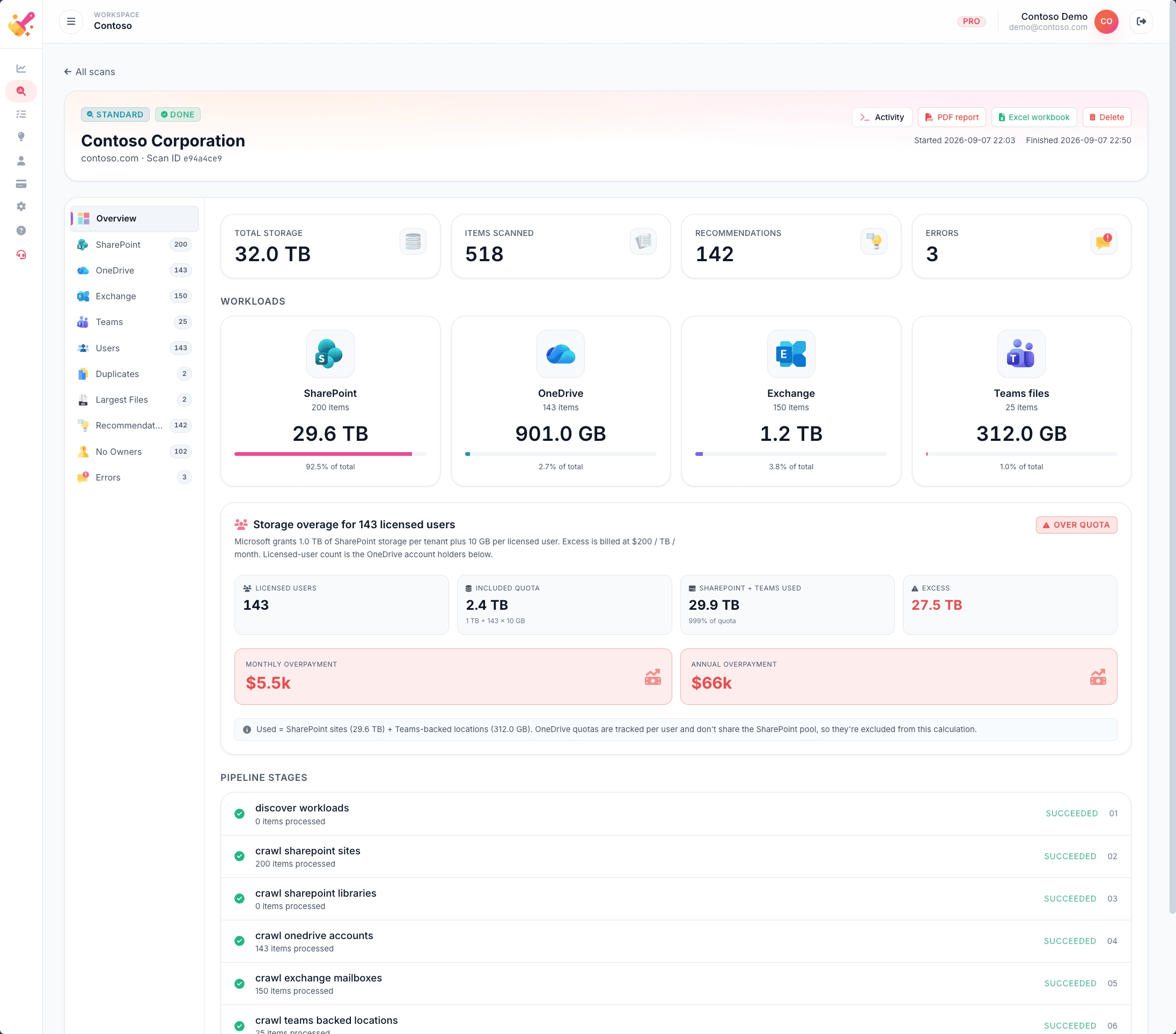
Additional Microsoft 365 storage is priced at $0.20 per GB per month, and typical mid-size tenants hold 20–40% they no longer use. Old drafts, duplicates and ex-employee OneDrives grow every quarter — nobody deletes anything, and the tenancy quietly carries the cost.

The other problem: Microsoft 365 Copilot answers from the wrong file

Microsoft 365 Copilot searches everything the user can see. Ten versions of the same "HR policy" — half of them stale — and Copilot happily quotes the wrong one, confidently. TSO surfaces the duplicates and orphaned drafts so your ground truth is clean before rollout.

Why native admin tools miss both

The SharePoint admin storage report shows totals per site — not which files, which owners, which duplicates. Copilot data-quality issues never appear in those reports. TSO surfaces both, ranked and exportable.

What TSO does about it

One consent, one scan, one ranked reclaim list per workload. Each finding carries the site, owner, size, age and reclaim estimate, so an admin can act in minutes — or hand it to the data owner with the receipts.

Reports your CIO and finance team will read

Every scan produces a branded PDF and an Excel workbook, ready to hand upstairs. If you look after several tenants, the same report goes under your own brand on the MSP plan — see the MSP / Partners page.

Managing several tenants on behalf of clients? Read the MSP / Partners programme.
Features

Everything you need to get more from your M365 tenant

Six product surfaces, one scan, one report. Click any screenshot to see it full-size.

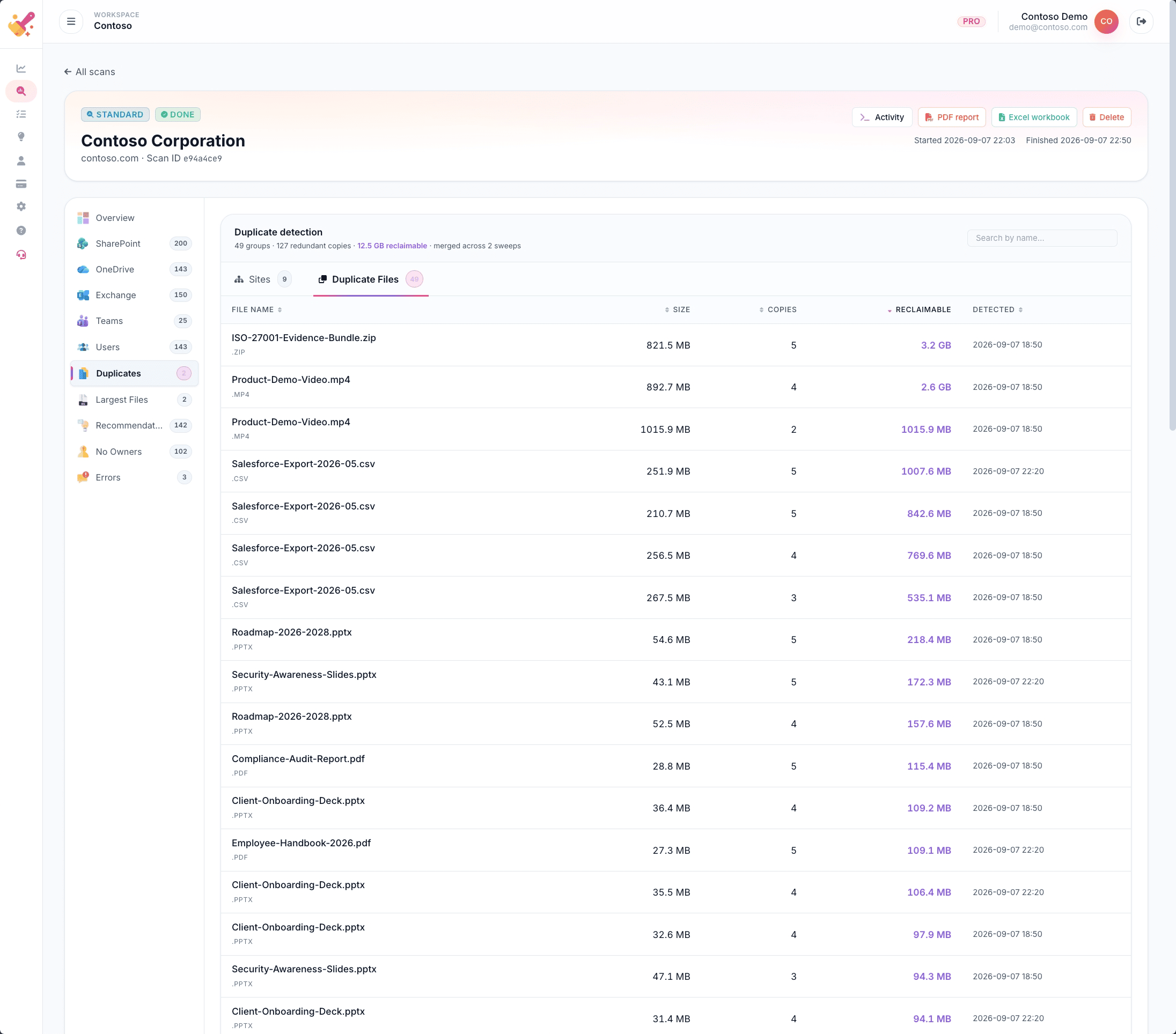
Duplicate detection

Hash-based sweeps across every SharePoint site and OneDrive account. Grouped by content, sorted by reclaimable bytes.

Read more

Largest files

Top-N largest files across every drive, with per-file version count. One click to open in SharePoint.

Read more

File versions

Files hoarding versions. Estimated reclaim if older versions were pruned, per file, with totals.

Read more

No-owner site insights

SharePoint sites without an owner, dormant OneDrives, sites without activity in years. Ranked by cost.

Read more

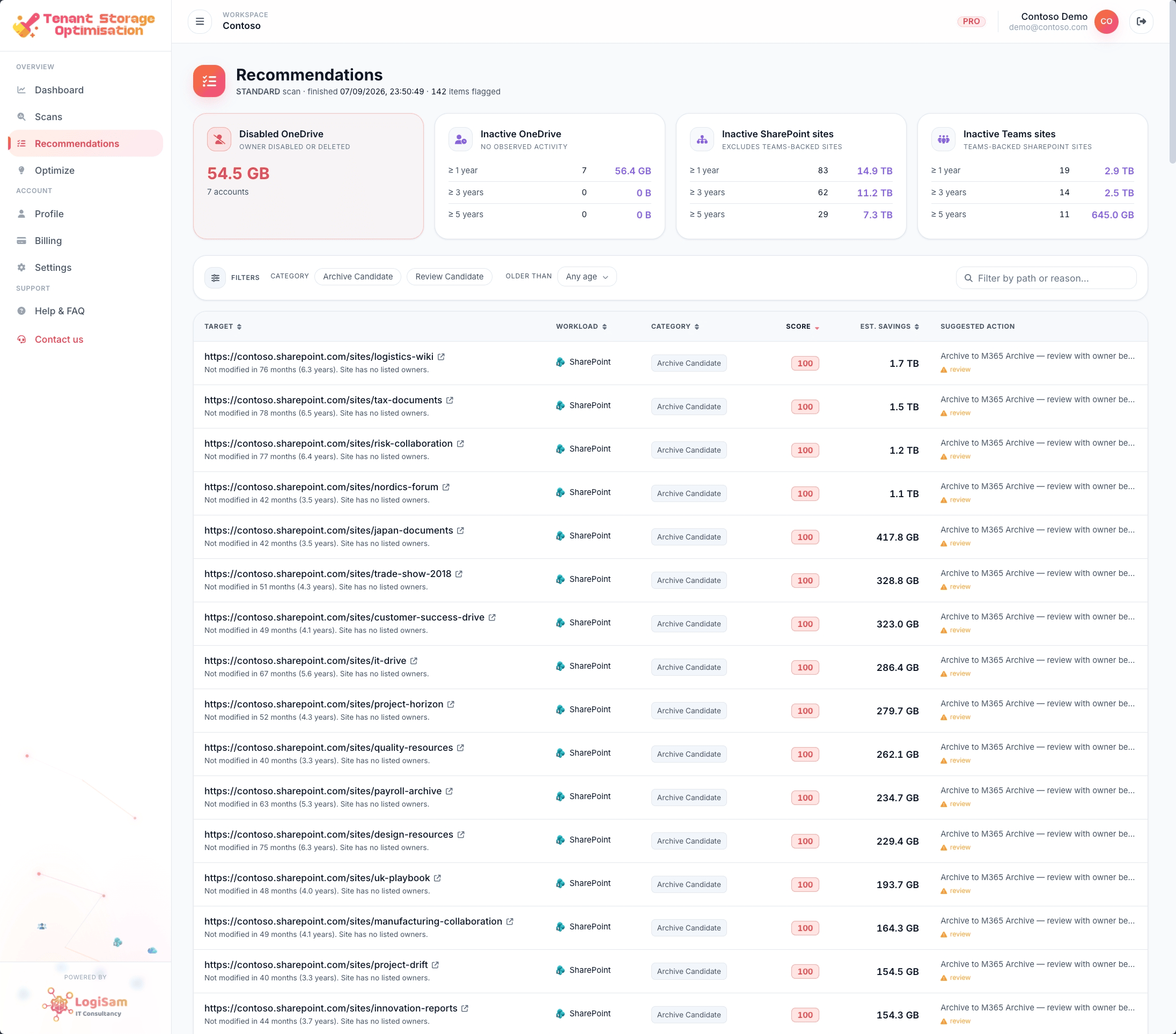
Recommendations engine

Archive / delete / review candidates, scored on age, ownership and usage — each with a reclaim estimate.

Read more

Optimise playbook

Groups every finding into an actionable plan with a cumulative reclaim readout — the version of the story a data owner will read.

Read more
Copilot-ready storage

Your Copilot is only as good as your data.

Microsoft 365 Copilot grounds every answer in the files the user can already see. When that includes ten versions of the same policy — half of them out of date — the answer is confidently wrong. TSO surfaces the duplicates and stale drafts so your ground truth is clean before you roll Microsoft 365 Copilot wider.

Before TSO
Employee asks Copilot
“What is our expenses policy?”

Our expenses policy sets a £30 daily meal cap for domestic travel and requires manager approval for anything over £500. Alcohol is not reimbursable.

⚠ Answer combines wording from three different documents — one drafted in 2018 and never retracted.

Copilot cited
  • StaleHR-Policy-Expenses-2018-DRAFT.docxHR / Old policies
  • OrphanExpenses Policy v2.pdfSam Torres' OneDrive
  • CurrentHR Policy — Expenses (Final).docxHR / Policies
After TSO
TSO recommendation
“Expenses Policy” — 3 copies found across tenant

Cull the 2018 draft and the orphaned OneDrive copy. Retain the HR-owned 2026 final as the single source of truth. Copilot will quote from it — and only it — going forward.

Reclaim 4.2 MB · Removes 2 confused Copilot sources · One click to export the action list.

Recommended actions
  • ArchiveHR-Policy-Expenses-2018-DRAFT.docx+2.1 MB
  • DeleteSam Torres' OneDrive copy+2.1 MB
  • KeepHR Policy — Expenses (Final).docxOwned

10 versions, no ground truth

The 2018, 2021 and 2026 versions of your expenses policy all live in the tenant. Copilot has no way to know which one is authoritative — so it will happily quote from any of them.

Stale drafts outrank current

A pinned 'Pricing 2018 draft' still surfaces above the live pricing site because it was popular once. Copilot picks it up and quotes 2018 numbers to a 2026 customer.

Ex-employee OneDrives leak

An orphaned OneDrive still visible to the user's manager keeps working policy drafts alive years after the author left. Copilot cheerfully quotes them.

See it before you sign in

Two ways to try TSO without an account

A browsable sandbox populated with demo data, and a sample report rendered from the same workspace. No sign-up, no card, no Microsoft consent needed to look around.

Open the live demo

Walk through a pre-populated tenant with example SharePoint sites, OneDrives, duplicates and recommendations. Every screen you would see after signing in, backed by demo data only.

See live demo

Download a sample report

The PDF TSO generates at the end of a scan, rendered from the demo workspace. Executive summary, per-workload breakdowns, top-ten reclaim actions — exactly the format a CIO or finance team will read.

Download sample PDF

See what's hiding in your tenant.

Sign in with Microsoft 365 SSO — your first scan is free. Read-only. No card required.

The LogiSam Microsoft 365 Copilot suite

Three steps to a tenant Microsoft 365 Copilot can actually use

  1. Tidy
    TSO

    Find the duplicates, the stale drafts and the orphaned OneDrives before Microsoft 365 Copilot quotes from them.

    You are here
  2. Secure
    Copilot SafeScan

    Catch the files Microsoft 365 Copilot can read but shouldn’t — oversharing, external-guest access, missing sensitivity labels.

    Coming soon — ask LogiSam
  3. Measure
    Copilot Insights

    Who is really using Microsoft 365 Copilot, in which apps, with what prompts — and where the licence spend is going to waste.

    Coming soon — ask LogiSam